
Omni Calculator logo

Omni Calculator Tips, Help & FAQs

 
You do not need to know all the variables to get our tools to work. And you will be delighted to know that some of our variables have magical properties.

What should I do if a calculator asks for a value I don’t know?

The beauty of our calculators is that you can use them in any order. For most of the tools, as long as you have one unknown variable, the result will be calculated and displayed.

How do I add more numbers in calculators?

There are two ways to add multiple inputs:

  • Choose or enter the number of variables you need, and the variables will appear accordingly.
  • The second method is what we call magic rows. Here, each time you fill in the last variable, a new one appears immediately. For instance, if you enter a value in the 1st and 2nd variables, the 3rd one will appear. And once you input it, the 4th will appear, etc.

 
Changing units and currencies to suit your needs is straightforward in our tools.

I need to change the units. How do I do that?

Our first priority is to use the most common options as the default units in our tools. If you think you need to use a different one, then:

  1. Click or tap on the variable unit before entering the value.
  2. A drop-down menu of available units will appear.
  3. Choose a unit of your choice, then use the tool as you normally would.
  4. You can also use it as a unit converter: first enter the value in the variable, then change the unit to the one you want to convert to. The value will be shown accordingly.
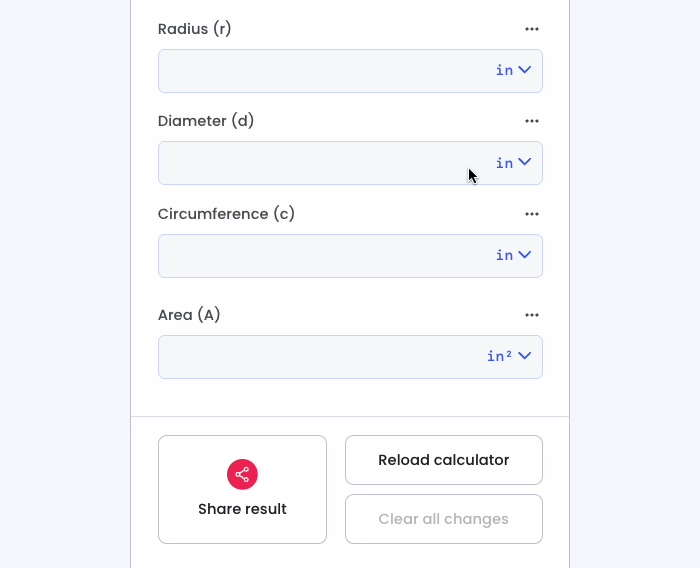
Image showing how to change units.

I need to input the number in a different currency.

Our currency selectors work similarly to our unit selectors. In tools that involve currencies, you will see a currency drop-down menu on the right-hand side of the variable. Opening it will show the available currency options.

Remember that the default currency is shown based on your local currency.

 
We will make sure you are not confused about where the calculate button is or why the result is playing hide-and-seek with you.

Where is the calculate button?

Our calculators function without a calculate button. All you have to do is enter the values for the variables, leaving one empty, and the result is displayed.

In certain situations, you might see tools where the result variable is hidden behind an equality = symbol; you get the result by pressing it. It was an experimental feature, not implemented site-wide, and will soon be disabled.

Where can I find the result of the calculator?

Once you enter values for all variables except one, that remaining value is determined instantly. The way to distinguish between an input and an output is that the results are blue.

In certain detailed or complex calculators, you will find the result in a separate section. It is usually labeled “Result” or the calculator’s name, indicating the variable you came to calculate.

Sometimes you might have to scroll further down to see the result.

(If you still cannot find the result, leave a comment or email us; there is a very small chance it could be a bug that you can help fix.)

 
What are the steps to get to the result?

Each of our tools comes with a dedicated, detailed article. The article provides information not only about the calculator but also about the tool’s topic. It usually contains important definitions and sections that explain how the tool works.

Some sections also explain the formula used in the tool, along with some worked examples that help understand the step-by-step solution to the problem.

Where can I find the formula used in the tool?

In most instances, you can find the formula used to make the tool in the accompanying article that explains the formulas with concrete examples.

 
There are simple but effective additional features that make our tools even more user-friendly.

What is the three-dot menu for?

The three-dot menu lets you save your inputs for the next time you visit the same calculator. See the next question’s answer to learn more about it.

How do I save inputs on a frequently used calculator?

If you find yourself coming back to a favorite calculator and entering the same value into it, there is a small trick that will save you some time. Follow these steps:

  1. Press the three dots icon on the right-hand side of the variable you want to save.
  2. You will see a Save input value slider. Press it so it slides to the right.
  3. A pin icon will appear next to the variable, indicating that the value is saved between visits.
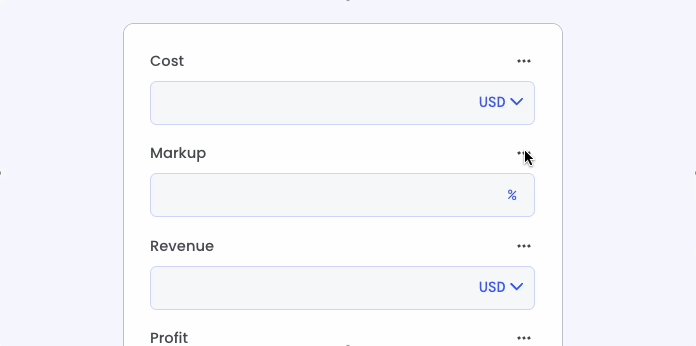
Image showing the steps to enable variable saving.

Why do I need to share the results on my social media?

The simplest answer is that you do not need to share the results to see them or for any other reason.

It is simply an option available to you if you want to use it and show off the tool you used.

What is the info icon for?

The info icon is there to help you understand complex variables or situations where the variable needs some explanation. Pressing the icon displays help text associated with the variable.

How do I reset a calculator to start a brand-new calculation?

At the bottom right of the calculator, you will find two buttons that help reset it.

  1. Reload calculator: Pressing this button resets all the values in the variables. But it retains the input values that you saved or the units you may have changed.
  2. Clear all changes: Pressing this button clears/resets everything: the values in the variables, saved inputs, and changed units.

 
Here, we address your concerns about ads, buggy behavior, and Omni Calculator accounts.

The ad is covering the content I am trying to access.

Ideally, the ad should disappear in a few seconds. If not, try clicking or tapping outside of it, or if you see a cross button on the ad, press it.

If nothing works and you still cannot get rid of the ad and use the tool, write to us at feedback@omnicalculator.com with information about your phone, browser, computer, etc.

What should I do if I find a bug or an incorrect calculation result?

If you stumble upon a bug or an error in one of our calculators, feel free to write to us at feedback@omnicalculator.com about it. Make sure to share the details of how the error occurred and, if possible, a screenshot. We will verify the issue and make any necessary corrections.

Do I need to have an account to use Omni Calculator tools?

It is not mandatory to have a registered account with Omni Calculator to use our tools. But that being said, having an account does have its perks.

You can get quick access to recently used calculators. And if you feel like we do not have a tool that you need, you can use Omni Calculator Builder to create your own calculator with AI or simple coding.

I have an idea for a calculator that doesn’t exist yet. How can I suggest it?

If you think you have an idea that can be quantified and converted into a calculator, you can write to us at feedback@omnicalculator.com to let us know. Our user feedback specialist will review the idea and let you know whether we can add it to our collection.

Or you may use Omni Calculator Builder and create your own tool with us. Sounds exciting? Well then, sign up now and unleash your creative genius.

 
You can embed our tools to make your webpages stand out or cite them in your academic paper.

Can I embed an Omni Calculator tool on my website?

Press the Embed button to generate embed code to add our tool to your website and enhance your webpage.

For detailed information, check out Embedding Omni Calculators on Your Website.

How can I cite Omni Calculators?

Pressing the Cite button shows the recommended way to reference Omni Calculator in your citation. You have the option to choose from plain text, HTML, or BibTeX citation formats.

Use the Copy to clipboard button to quickly copy the citation and paste it into other applications or documents.

 
If you would like to learn about each feature of our calculators in more detail, check out our full documentation page.